Understanding Your Briefing
How to read and interpret your PlaneWX weather briefing — three view modes, every section explained, and how to use Visual mode's live forecast imagery.
Three Ways to View Your Briefing
All three views contain the same weather data and analysis — the difference is how the information is presented. Switch between them using the toggle at the top of any briefing. Your preference is saved across sessions.
Quick
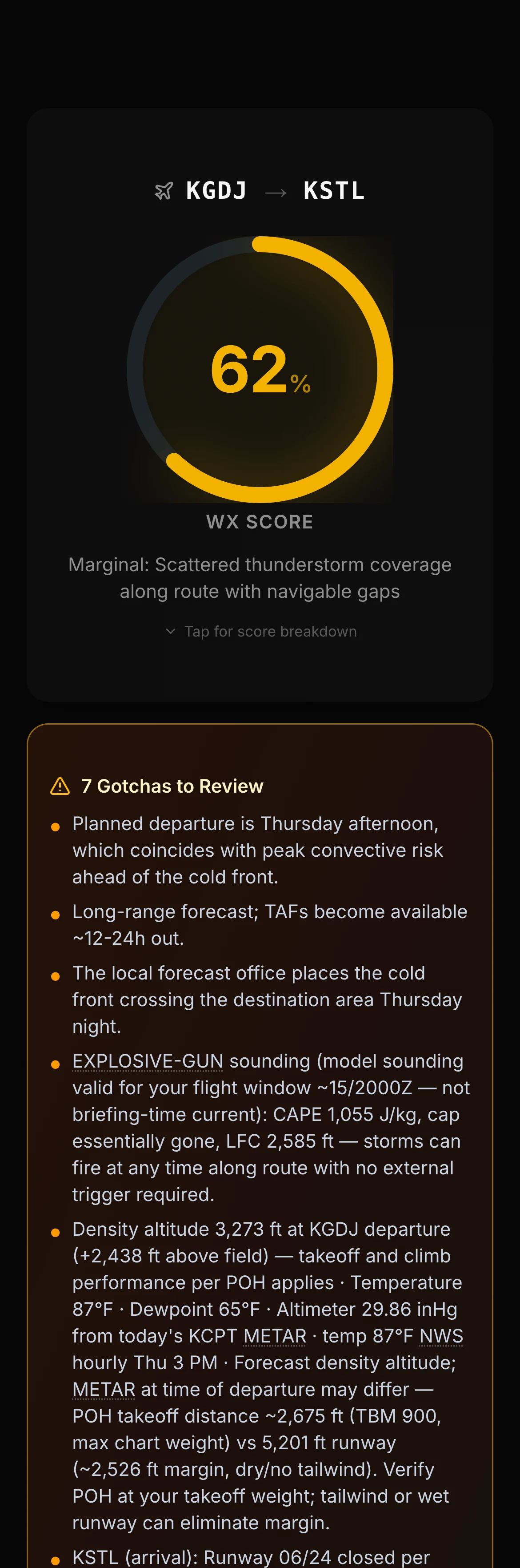
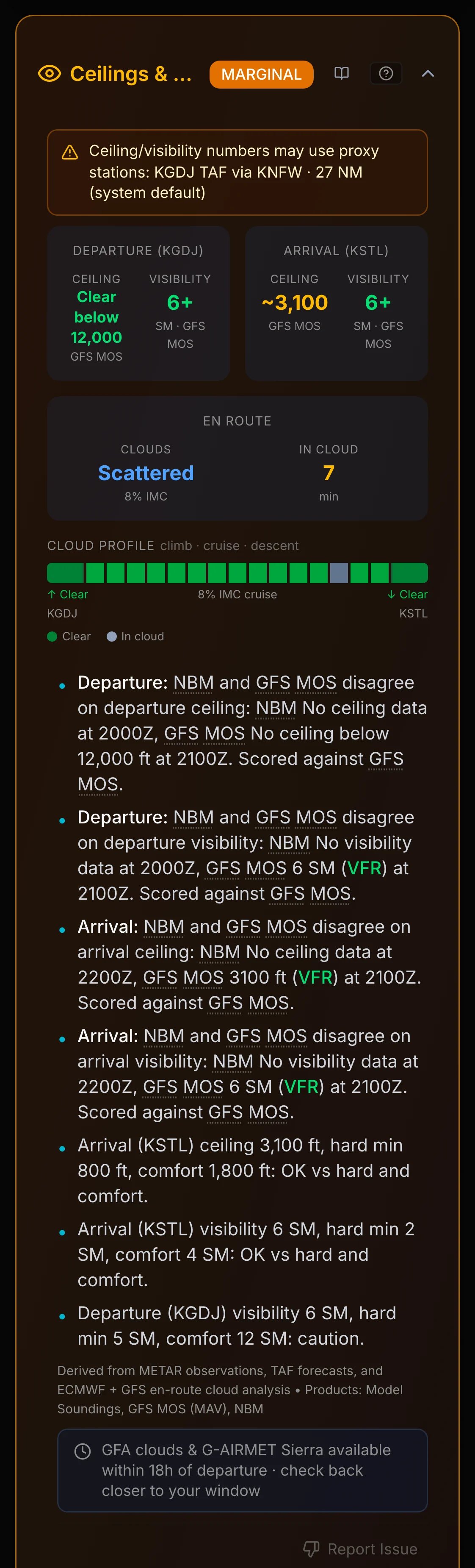
Phone default- • Compact summary — score, gotchas, key numbers
- • Best for a fast pre-flight check
- • Built-in default on phones (≤767px) with no saved preference
Enhanced
- • Color-coded data grids with gauge bars
- • VFR/MVFR/IFR/LIFR flight category indicators
- • Severity badges for turbulence and icing
- • Source attribution on every section
Visual
Desktop default- • Live NOAA/AWC forecast charts embedded per section
- • Official NOAA/AWC section imagery in Visual mode
- • Charts auto-matched to your departure time & altitude
- • SPC convective outlook, GTG turbulence, FIP icing, and more
How to switch: Tap Quick | Enhanced | Visual near the top of your briefing. Your selection persists across all sessions.
Built-in defaults: Desktop opens in Visual. Phones (≤767px wide) with no saved preference open in Quick.

Briefing Layout
Every briefing follows a consistent structure, from top to bottom:
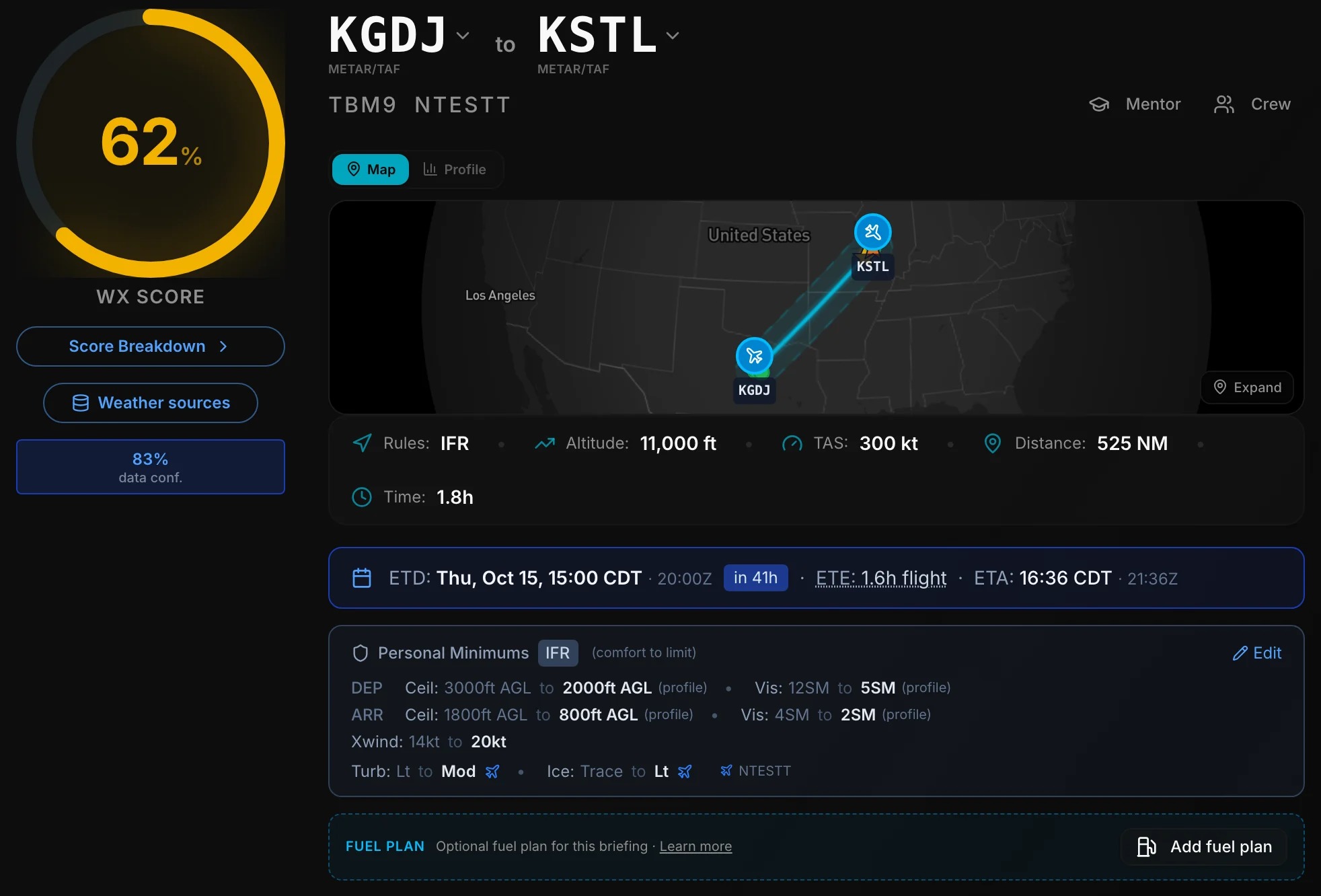
WX Score & Flight Details
Your overall WX Score with Favorable (75 and up), Marginal (50 to 74), or Unfavorable (under 50) bands, plus route, aircraft, departure time, and data confidence badge. Favorable, Marginal, and Unfavorable name score bands only. GO or NO-GO is your call as PIC.
Gotchas
Top-priority weather concerns that need your attention before flying
Briefing Summary
A plain-English summary of overall conditions, en-route weather, and key considerations. When the WX Score includes a convective SIGMET or thunderstorm deduction, the Summary is required to name that hazard. It will not claim “no significant convective threat” while the score breakdown still shows one. When the Summary states an Overall band word, it is aligned to the WX Score band (Favorable, Marginal, or Unfavorable). A more cautious Overall word that gives a reason, such as a named hazard, is left as written. Icing lines that name an SLD source (CIP, DAFS IFI, or multi-model NWP) or a single phase severity are aligned to the icing tiles and sources.
Convective Watch
Thunderstorm and convective threat assessment (only appears when convective activity is detected)
Weather Sections (5 sections)
Ceilings & Visibility, Turbulence, Icing, Winds Aloft, and AIRMETs/SIGMETs
Terminal Weather, Sources & Raw Data
METAR/TAF cards, weather product sources, and raw data for pilots who want the full picture
Section Status Colors
Each weather section is color-coded based on how conditions compare to your personal minimums and general aviation safety standards:
Conditions are well within your minimums. No concerns.
Conditions are close to your limits. Extra attention needed.
Unfavorable: exceeds personal minimums used for the score.
Weather Sections Explained
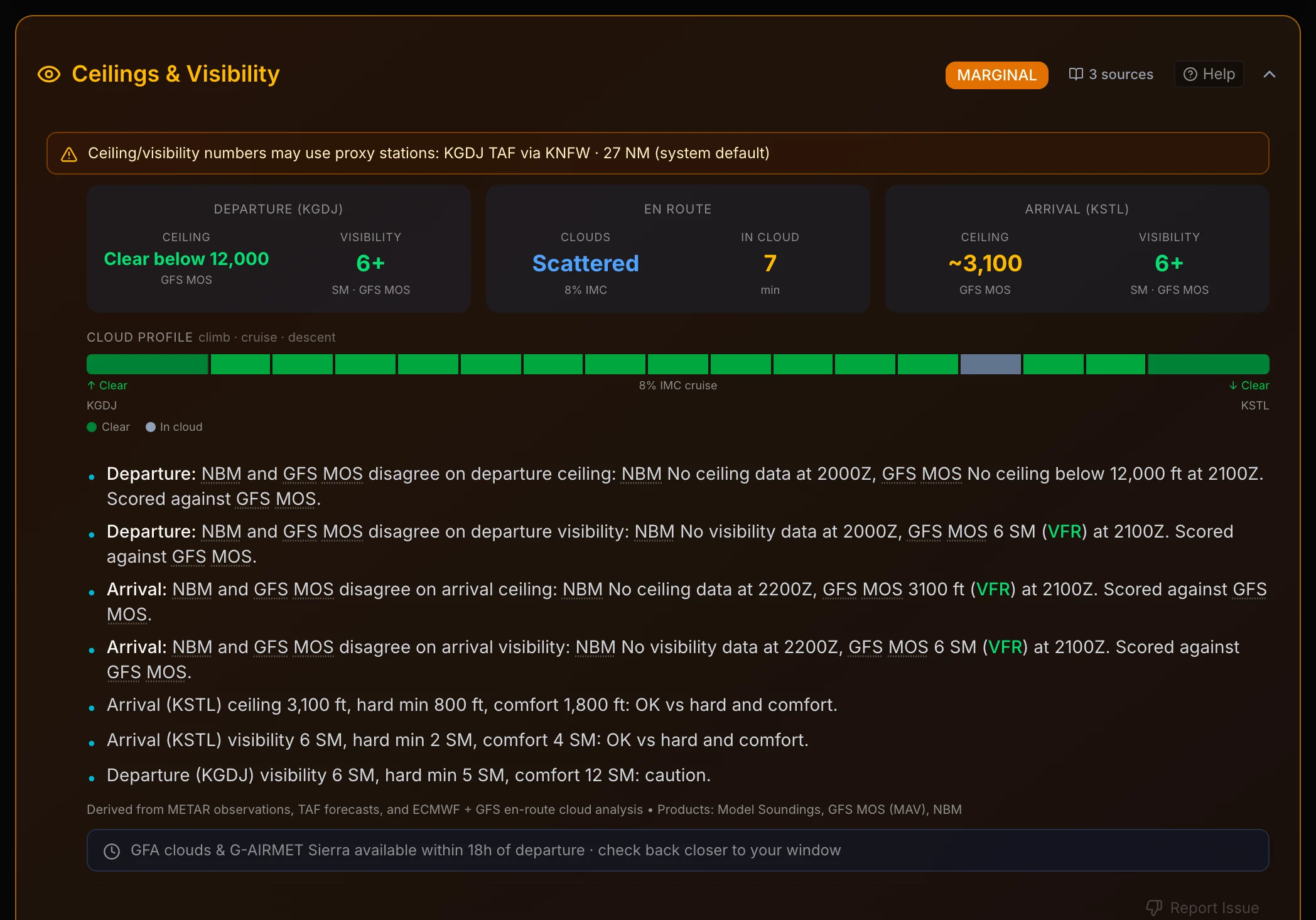
Ceilings & Visibility
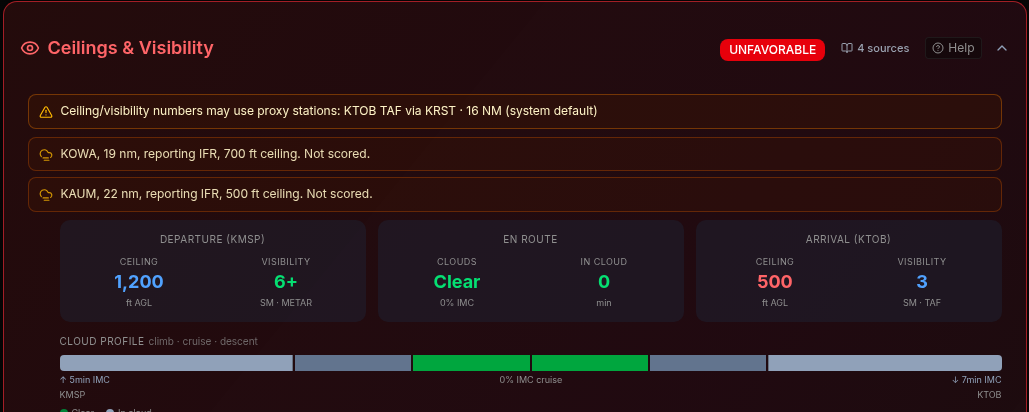
Shows cloud bases and visibility at your departure, arrival, and en-route. In Enhanced View, you'll see a visual grid with independent color-coding for ceiling and visibility values.
When you arrive within about 3 hours of the briefing and your destination has no TAF of its own (a proxy TAF from another airport doesn't count), or its own TAF doesn't show fog, mist, or IFR at your ETA, Ceilings & Visibility can list up to 2 airports within about 30 nm whose latest report (from the last 90 minutes) shows fog, mist under 3 SM, or IFR. Each line looks like “KMIE, 13 nm, reporting 1/4 SM fog. Not scored.” These lines never affect the WX Score. You decide how to use them for your GO / NO-GO call.
Flight Category Colors
“CLR” means clear skies (no ceiling) and “10+” means unrestricted visibility — both displayed in green. Flight category badges and the origin/destination map dots use the worst-case forecast ceiling and visibility for your departure or arrival window (from the TAF or other forecast products covering that window). Map station titles name that time basis (for example “VFR (forecast at ETA)”) and, when the live METAR differs, also show the current observation category. When no ceiling or visibility forecast is available for an end, the badge and map dot use the current METAR category; the map title and the Arrival Ceilings line label that as a current observation. Current METAR text on the map and in Sources stays the live observation; when current conditions and the window forecast disagree, the briefing labels which time each value describes. When wildfire smoke affects the corridor, VFR flights also score en-route estimated visibility against your personal minimums — see Wildfire Smoke.
Convective Watch
ConditionalThis section only appears when thunderstorm or convective activity is detected along your route. It combines data from multiple numerical weather models (regional hi-res plus GFS and ECMWF, chosen by route geography) and the Weather Prediction Center (WPC) to assess the threat level.
Threat levels:
- - Isolated - Scattered, pop-up cells possible; corridor gaps are often available
- - Scattered - Multiple cells or lines; route geometry often needs larger clearances
- - Widespread - Large-area convective activity; clearance past cells may be a significant detour
The Convective Watch uses CAPE, K-Index, and Lifted Index from model soundings along your route. See the Hazardous Weather page for detailed explanations of these indices.
Turbulence
Multi-model turbulence analysis using wind shear and Richardson number calculations from the models queried for your route. In Enhanced View, you'll see a grid showing severity during climb, cruise, and descent phases.
Icing
Icing assessment based on freezing level, relative humidity, and temperature profiles from multiple models. In Enhanced View, the grid highlights the freezing level, shows severity by flight phase, and indicates your FIKI equipment status.
Winds Aloft
Route-averaged wind analysis showing headwind/tailwind component, crosswind at departure and arrival, and the overall impact on your flight time. In Enhanced View, the grid shows wind direction, speed, headwind/tailwind component, and crosswind at your airports.
AIRMETs & SIGMETs
Active weather advisories that intersect your route corridor and altitude. PlaneWX uses polygon-based intersection testing for G-AIRMETs and filters by altitude to show only advisories relevant to your flight.
Advisory types: G-AIRMET Sierra (IFR/mountain obscuration), G-AIRMET Tango (turbulence), G-AIRMET Zulu (icing), SIGMETs (significant weather), and Convective SIGMETs (severe thunderstorms).
A G-AIRMET Zulu freezing-level contour (FZLVL) is informational only. PlaneWX shows the freezing level when it intersects your route, but it does not count as an Active Zulu icing advisory and does not corroborate icing.
Open in aviationweather.gov
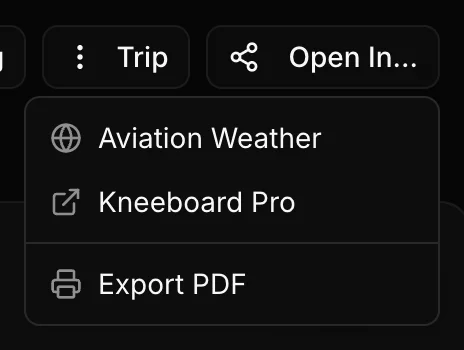
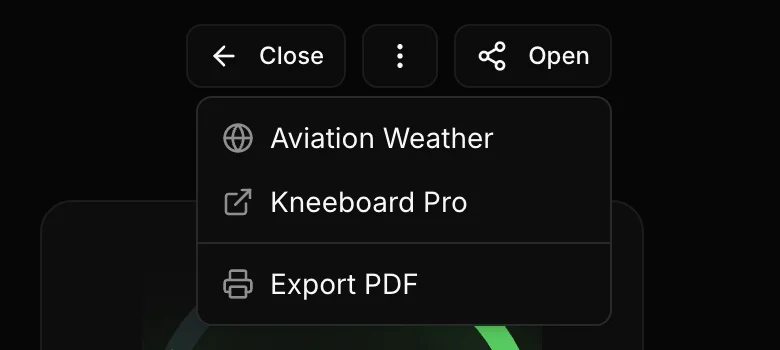
On every briefing view (Quick, Enhanced, and Visual), the top toolbar includes an Open In… button. Choose Aviation Weather to open the FAA Aviation Weather Center Graphical Forecasts for Aviation (GFA) map with your route drawn as a flight path. The menu can also list Kneeboard Pro and Export PDF; which rows appear depends on the trip and your device. On screens narrower than 640 px the button reads Open. The Open In page covers each option.
Who can use it: Available on every plan (Free, Casual, Pro, and Pro Plus).
What you get: GFA opens on the Observations tab, centered on your route, with the flight-path layer on so you can compare radar, METARs, and other products along the same line you briefed in PlaneWX.
Clipboard: PlaneWX also copies the route string (airports and fixes) to your clipboard when you open the link, in case you want to paste it into GFA's own flight path tool.
What the link includes
- Route: Departure and destination as ICAO (3-letter US ids get a K prefix, e.g. ROG becomes KROG), plus enroute fixes and waypoints from your trip.
- Airways stripped: Designators such as V14, J80, or Q13 are removed because GFA does not resolve airway names, only airports and fixes.
- Map view: Center lat/lon and zoom fitted to your route polyline (or origin/destination METAR stations if the polyline is missing).
- Not included: Cruise altitude, flight level, departure time, or forecast valid time. Pick time and altitude inside GFA after it opens.
Example
Trip KSAT to KGEU with waypoints FST, TXSAS, SWIMS, and OLIIN. Map centered near 31.5°N 105.4°W at zoom 6.
https://aviationweather.gov/gfa/?tab=obs¢er=31.500%2C-105.400&zoom=6&mapLayers=basicMap%2Cfltpath&fltpathpath=KSAT+FST+TXSAS+SWIMS+OLIIN+KGEU#obs
Source Attribution
In Enhanced View, every weather section includes a “Derived from” line at the bottom, showing exactly which data sources were used for that section's analysis. This transparency helps you understand the basis of each assessment.
Example: “Derived from multi-model wind-shear and Richardson number analysis at FL115 • Corroborated by AIRMETs Tango and PIREPs”
Some sections also have a Sources button that opens a detailed popover with the raw data products used, model details, and confidence information.
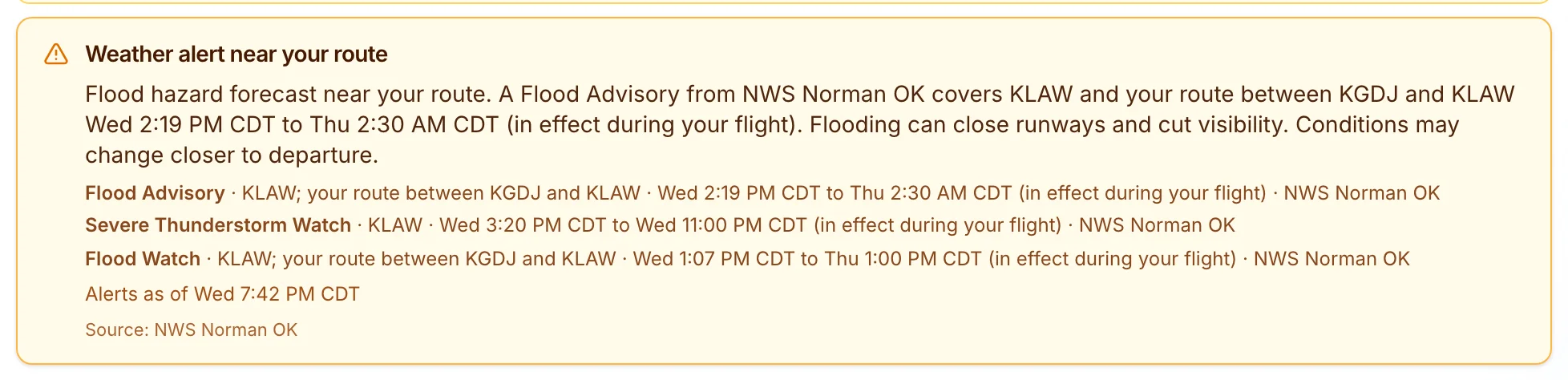
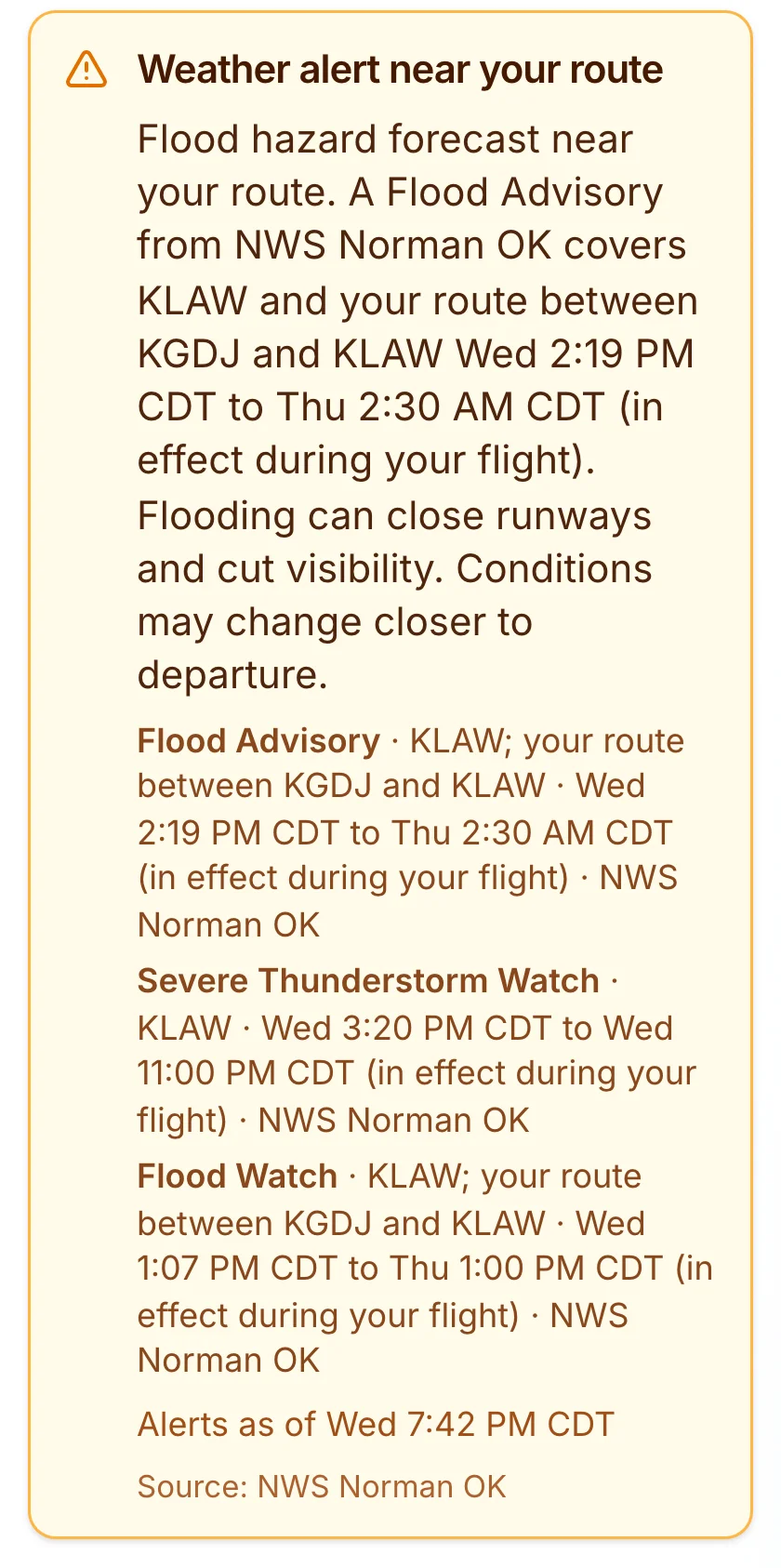
When an NWS watch, warning, or advisory from PlaneWX's storm list touches your departure, destination, or route during the flight window, the briefing shows a banner titled Weather alert near your route. It sits above the WX Score on the briefing page (full briefing and simple view). It does not appear on trip cards or in emails.
What it shows
- A short lead line for the kind of hazard (wind, thunderstorms, winter, tropical, or marine)
- The alert name (for example High Wind Warning), where it applies, and when it is in effect in local day-part words
- Each visible alert line ends with its own issuing office
- The Source line lists every unique office from all matched alerts, including ones not shown in the list
- Up to three alerts in the list. When more alerts match, an extra line reads “Plus 2 more from NWS Elko NV” when the hidden alerts add new offices, and otherwise “Plus N more alerts along the route.”
- If an alert has no sender, or only a bare “NWS”, it shows “NWS office not given” and never borrows another alert's office
- When the alerts were fetched: the banner shows “Alerts as of …”. If the latest check did not complete and older alerts are shown, the line reads “Latest storm alert check didn't complete. Showing alerts as of …”
Which alerts count
PlaneWX matches exact NWS CAP event names that can affect flight safety: high wind and extreme wind, dust and blowing dust, flood and flash flood (including Flood Watch), severe thunderstorm and tornado, winter storm / blizzard / ice storm / snow squall / lake-effect snow, winter weather and freezing rain advisories, dense fog and freezing fog, dense smoke, ashfall, extreme cold, hurricane / typhoon / tropical storm, storm surge when it covers your route, and marine gale / storm / hurricane-force wind products. Matching watches, warnings, and advisories on that list are included. Coastal Flood and Lakeshore Flood products are not included (tidal or lakeshore inundation, not flight weather). Cancelled messages and non-Actual statuses are ignored. Expired alerts are ignored.
Matching uses your departure, destination, and points along the route (about every 25 NM on short routes, spaced farther on long ones, up to 12 interior samples). Zone-only NWS products (no polygon, for example many Flood Watches) match when an NWS point query for a route sample returns them. Alerts that include a polygon are also checked against a shared 20 NM corridor around the route line, so small warning footprints between sample points still show, and cells about 30 NM offline do not. Time matching uses the alert onset/ends window (not message expires) with one hour before departure through one hour after arrival.
Flood products are placed by type. Flash Flood Warnings and areal Flood Warnings (rain flooding over an area) are matched at the departure, destination, route samples, and the 20 NM corridor, and use warning styling. Only Flash Flood Warning text mentions runways and visibility. River flood products (NWS river forecast point warnings, watches, advisories, and statements) appear only when they cover the departure or destination airport, as an advisory-style note. River flood products elsewhere along the route are not shown. When the latest NWS alert check could not finish, the banner keeps the alerts from the previous check, and an older saved Flood Warning that has no product type is then shown only at the departure or destination airport, as a river flood note.
Each NWS alert has its own line with its own time window and office. Separate alerts are not combined into one line. The wording follows what the location check found: an alert that covers an airport names the airport, an alert whose area includes part of the route line says it covers part of your route, and a polygon alert that only falls inside the 20 NM corridor says it is within a number of nautical miles of your route.
Each alert line opens to show the NWS source: the NWS headline, the area the alert names (a long area list shows its first part, and Show rest of area opens the rest), when NWS issued it and when the message expires (departure airport local time with zone, and Z), and a link to the alert record on api.weather.gov. Alerts saved before this detail was added may show only the headline and link.
Warnings use the strongest banner styling, watches use a calmer amber style, and advisories use the lightest style. The banner text is specific to the hazard kind (flood, dust, wind, and so on) and does not change the WX Score.
Shown, not scored. The banner is informational only. It does not change the WX Score, score breakdown, or Favorable / Marginal / Unfavorable status. Recheck closer to departure if conditions are changing.
When an active NHC tropical system is forecast near your departure, destination, or route around your flight time, the briefing shows a caution labeled NHC forecast that says we are tracking it, with a link to the NHC page. When While You're There is shown and the storm matches your destination stay, the same caution also appears there for hangar and tie-down plans. It appears in the briefing only, not in emails, push notifications, digests, or AI assistant answers, and it does not change the WX Score.
On IFR trips, PlaneWX shows an Alternate required (91.169) fact flag only when the destination's own TAF, in the hour before through the hour after your ETA, has a ceiling below 2,000 ft or visibility below 3 SM (any TEMPO, PROB, BECMG, or prevailing/FM group). When the destination has no TAF of its own, the briefing instead shows a short fact-only Destination forecast note: the nearby TAF the briefing uses, its distance, and the lowest ceiling and visibility it shows from 1 hour before to 1 hour after your ETA (or that there is no nearby TAF). Rule details shows the 91.169(b) exception (a standard or special instrument approach at the destination, and weather reports or forecasts showing a ceiling of at least 2,000 ft above the airport elevation and visibility of at least 3 SM from 1 hour before to 1 hour after the ETA), the exact window, the reports the briefing has when there is no nearby TAF, and a link to the regulation text. A nearby or proxy TAF does not count as the destination's forecast, so it gets the same note. PlaneWX does not check whether the destination has an instrument approach. Both are fact-only: they do not change the WX Score and do not recommend an airport. The Alternate required flag is also listed once in Gotchas; the Destination forecast note is not repeated there.
Related Help Pages
Visual Mode
Live NOAA/AWC imagery in Visual mode
WX Score Explained
How the score is calculated and what deductions mean
Forecast guidance age
When older MOS runs change how the WX Score uses long-range guidance
Flight Window Explorer
Find the best time and altitude when your planned score is low
Hazardous Weather
Convective indices, thunderstorm analysis, and icing details
Multi-Model Icing Analysis
Cloud-top veto, phase peaks, and ForeFlight VCS cross-check
Convective Watch Scoring
Time-aware SIGMETs and honest convective summaries
Diversion Spacing
Gap spikes, corridor scan, and route map layers for divert options