Connect PlaneWX to Claude, Grok, ChatGPT, Gemini and Perplexity
Connect PlaneWX to an AI assistant so you can ask for a WX Score and departure windows in chat. The pilot in command still makes every go or no-go decision.
Part of Pro Plus. Pro Plus features
PlaneWX has a plugin for both Claude and ChatGPT. Use each assistant's directory listing when you can.
Claude custom connector steps are further down on this page.
Claude: Find PlaneWX in Claude's connector directory.
ChatGPT: Add PlaneWX in ChatGPT. A paid ChatGPT plan is required.
This is a beta, so you may run into bugs. If something looks wrong, tell us with the Feedback button in the app.
The AI assistant connector is a Pro Plus Labs feature (Enterprise included). Turn it on first under Profile, Preferences, PlaneWX Labs (the switch is labeled AI assistant connector). See PlaneWX Labs and Plans.
MCP server URL
Use this URL when your assistant asks for a custom MCP server or connector address:
https://app.planewx.ai/api/mcp
Claude
Find PlaneWX in Claude's connector directory (listed as PlaneWX, Community, by PlaneWX LLC). Sign in to PlaneWX and approve; tick Also allow building briefings if you want scored runs.
Or add it as a custom connector with the URL https://app.planewx.ai/api/mcp:
- Turn on the AI assistant connector first under Profile, Preferences, PlaneWX Labs (the switch is labeled AI assistant connector).
- Open Claude and go to Customize, then Connectors, then Add custom connector. Leave OAuth Client ID and secret blank. On Team and Enterprise, only Owners can add a custom connector. Free allows one custom connector.
- Enter the PlaneWX MCP URL (https://app.planewx.ai/api/mcp).
- Sign in with your PlaneWX account when prompted and tick Also allow building briefings on the PlaneWX consent screen to allow scored runs.
- Ask Claude a weather question for a route and time. It should call PlaneWX tools such as resolve_airport, list_trips, get_trip_briefing, score_trip, or find_departure_windows. Ask "What are my limits?" and it should call get_my_limits.
ChatGPT
Pro Plus Labs (Enterprise included). PlaneWX scores the weather for your route and time; the pilot in command still makes every go or no-go decision.
A paid ChatGPT plan is required.
Gemini
- You need Pro Plus, Enterprise, or a Pro Plus trial. Turn on the AI assistant connector in Profile, Preferences, PlaneWX Labs.
- Needs Gemini custom apps access: 18 or over, in the US, signed in with a personal Google Account, with Keep Activity on.
- On your computer, go to gemini.google.com. At the bottom, click Settings, then Connected Apps (if you don't see Connected Apps, click Personal Intelligence first). Under Custom apps, click Add a custom app, enter the URL https://app.planewx.ai/api/mcp and click Next.
- Leave Client ID and Client secret blank.
- Sign in to PlaneWX. Tick Also allow building briefings if you want scored runs, then press Allow.
- Disconnect anytime in PlaneWX account settings or in Gemini.
Grok
- Turn on the AI assistant connector first under Profile, Preferences, PlaneWX Labs (the switch is labeled AI assistant connector).
- Open Grok at grok.com. In settings, look for the option to add a custom connector or MCP server.
- Enter the PlaneWX MCP URL (https://app.planewx.ai/api/mcp).
- Sign in with your PlaneWX account when prompted, then Approve on the PlaneWX consent screen. Tick Also allow building briefings if you want scored runs.
- Ask Grok a weather question for a route and time. It should call PlaneWX tools such as resolve_airport, list_trips, get_trip_briefing, score_trip, or find_departure_windows. Ask "What are my limits?" and it should call get_my_limits.
Perplexity
Perplexity limits some custom MCP servers to its Pro, Max, or Enterprise plans.
- You need Pro Plus, Enterprise, or a Pro Plus trial. Turn on the AI assistant connector in Profile, Preferences, PlaneWX Labs.
- In Perplexity, open Plugins in the sidebar (or Customize, then Connectors if Plugins is not there yet). Open Add custom, then Connector, then Add MCP connector, and select Remote.
- For Name, enter PlaneWX. For MCP Server URL, enter the PlaneWX MCP URL (https://app.planewx.ai/api/mcp).
- For Authentication, choose OAuth. PlaneWX registers Perplexity on its own, so no Client ID or Client Secret is needed. For Transport, choose Streamable HTTP.
- Check the acknowledgement box and click Add. PlaneWX appears on the Plugins page.
- Click the PlaneWX connector card to start sign-in. Sign in to PlaneWX. Tick Also allow building briefings if you want scored runs, then press Allow.
- Ask Perplexity a weather question for a route and time. It should call PlaneWX tools such as resolve_airport, list_trips, get_trip_briefing, score_trip, or find_departure_windows. Ask "What are my limits?" and it should call get_my_limits.
On Perplexity Enterprise, members can add a custom connector only after an admin turns on Allow members to add custom connectors (off by default). An admin can also add PlaneWX for the whole organization under Enterprise settings, Permissions, Connectors permissions, then + Custom connector, and share it with the organization from the Permissions screen. For an organization connector with OAuth, Perplexity lets the admin either sign in once for everyone or have each member sign in. Choose to have each member sign in, so every pilot connects their own PlaneWX account. Do not sign in once for the whole organization: that would share one PlaneWX account's trips, Self Debriefs (including private notes), FRATs and daily limit with every member. The rest of the steps are largely the same.
Once connected, Perplexity uses the same PlaneWX tools as the other assistants. Pilots ask things like:
- What is the WX Score for KGDJ to 8V2 Saturday morning?
- Find departure windows for KGDJ to 8V2 this weekend.
- What does my saved KGDJ to 8V2 briefing say?
- What are my limits?
To remove PlaneWX from Perplexity later, open the ellipsis menu on the connector card. Disconnecting in PlaneWX account settings works too.
What PlaneWX shares
When connected, PlaneWX can share your plan tier, home airport, aircraft (tail number, type, and per-aircraft minimums), personal minimums, MCP usage for today, your saved trips (upcoming, past, or all, including Self Debriefs with private notes up to 300 characters, or up to 400 characters when you ask for full details, and FRAT risk assessments), the stored briefing for a trip you ask about (same score the app shows), and scored candidate briefings you ask for in the chat.
PlaneWX never sends your password, payment details, medical certificate, logbook entries, or other pilots' data through this connector.
PlaneWX records each tool call your assistant makes (which tool, which assistant, whether it worked, how long it took, and when), but not what you asked or what came back.
Your saved trips (route, ETD, stored WX Score band, monitored or paused) come back without scoring again. Ask for a trip's stored briefing to see the same full briefing the app shows. Private notes from a Self Debrief are included and capped (up to 300 characters, or up to 400 characters when you ask for full details). If the list is long, ask the assistant for the next page. Example: "What upcoming trips do I have?"
When you ask your assistant about a saved trip, it reads the same briefing and WX Score you see in the app. It should only re-score when you ask it to refresh.
Ask for past trips or all trips to see flown trips too, with the briefed WX Score at ETD, your Self Debrief (private notes included and up to 300 characters, or up to 400 characters when you ask for full details), and actual versus forecast when you have a post flight debrief. FRATs come with every trip. Example: "Show my FRATs where I chose no-go this year."
Daily limits
This is a Pro Plus Labs feature. Turn it on under Profile, Preferences, PlaneWX Labs. It is not available on Free, Casual, or Pro without a Pro Plus trial. See Plans for how this sits next to other plan limits.
- Scoring runs: trial 12/day, Pro Plus 60/day and Enterprise 60/day, resetting at local midnight in your home time zone.
- Candidates per search: up to 3 per leg (up to 6 per ask for a round trip).
- Burst limit: 30 scoring starts per 10 minutes.
- Read-tool rate limit: 30 read calls per minute.
Ask your assistant "What are my limits?" to see your real usage and remaining for today (daily scoring used and left, local reset time, burst and read rates, weekly refresh, and the trial pool when on trial). Your assistant should call get_my_limits; it should not guess caps from memory.
Save a candidate as a trip
After score_trip or find_departure_windows returns a candidate, you can save it two ways. In chat, ask the assistant to call save_candidate_as_trip (needs the briefings permission). In the app, open the candidate briefing link and use the Save as trip button. Both copy route, departure time, aircraft, cruise altitude, and flight rules. They do not copy the candidate WX Score. The new trip gets its own fresh briefing under the same rules and schedule as a trip you create in the app. After a successful save, the candidate page shows Saved as trip. with an Open trip link.
On the candidate briefing page, tap Save as trip. When it finishes, the button is replaced by Saved as trip. and an Open trip link to the new trip briefing.
Example prompts
- What are my limits?
- What upcoming trips do I have?
- Show my FRATs where I chose no-go this year.
- Am I current for a passenger flight Saturday, and when should I go to 8V2? Check currency in ForeFlight, then use PlaneWX find_departure_windows for weather.
- Find the best time Saturday for KGDJ to 8V2 in PlaneWX, then create the flight in ForeFlight with those times.
- Compare the ForeFlight briefing with PlaneWX for my KGDJ to 8V2 flight and list where they disagree.
Watch example: "Keep an eye on my KGDJ to 8V2 briefing; if it drops below 50% or icing becomes a problem, find me a later time today."
That watch request needs refresh and watch tools that are not in PlaneWX MCP yet. The assistant can list saved trips with list_trips and read a stored briefing with get_trip_briefing, but it cannot watch a trip on its own today. Save the candidate as a trip in PlaneWX (save_candidate_as_trip or the in-app Save as trip button) and check the briefing there, or ask again later with score_trip or find_departure_windows.
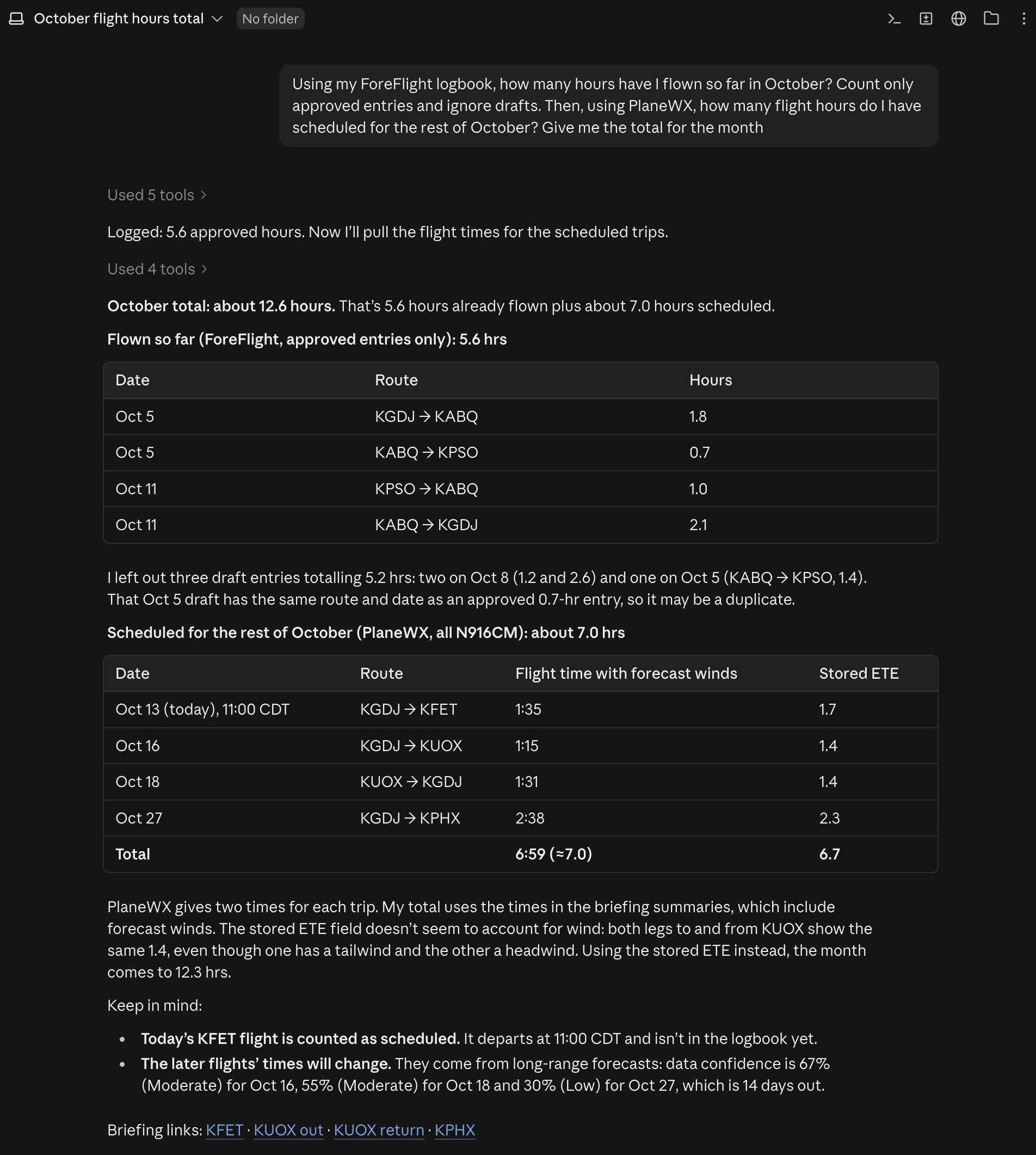
Example: October hours with ForeFlight and PlaneWX
Pro Plus only.
PlaneWX supplies the scheduled trips and briefing times. ForeFlight is a separate connector the pilot adds in Claude. The pilot in command still makes every go or no-go decision.
See it in action
Two short demos of the PlaneWX connector in Claude.
Use it with other aviation apps
You can connect PlaneWX and ForeFlight, or other aviation apps, in the same chat. Ask the assistant to check your logbook in the other app and then find PlaneWX windows that fit, for example arriving before sunset. PlaneWX does not read your logbook or medical, and it does not check currency.
How to disconnect
To disconnect, revoke the PlaneWX connection in your AI assistant's app or connector settings. Sign Out of All Devices (PlaneWX Settings) and changing your password also disconnect every assistant. The regular Sign Out only signs out the device you are on. After revoke, tools stop until you connect again.