How PlaneWX Keeps Your Briefings Current
Understanding when and why your briefings update - and what you can do to trigger a refresh.
The Briefing Lifecycle
When you create a flight, PlaneWX generates a briefing by analyzing 15+ weather products - METARs, TAFs, winds aloft, AIRMETs, SIGMETs, NBM forecasts, and more. That briefing is a snapshot of conditions at that moment. As weather evolves, your briefing needs to keep pace.
PlaneWX offers several ways your briefing stays current, depending on your plan:
Free Plan
- ✓15 briefings per week (resets every Monday)
- ✓Profile-change refresh (doesn't count toward your 15)
- ✓Full weather product coverage
- ✓Manual "Check Updates" button (live fetch in the final hour)
- ✓Trip card chip: Manual refresh only, last briefed X (owner view once your plan is known; paid plans do not see it)
- ✓iOS pre-flight check push 20 to 35 minutes before departure (on by default)
- - No automatic background refreshes
- - No email notifications
Casual Plan
- ✓Unlimited briefings
- ✓Automatic background refreshes on a smart schedule (up to 5 monitored flights)
- ✓Profile-change refresh
- ✓Live Weather Refresh button in the final hour (5-min cooldown)
- ✓Email alerts for WX Score changes
- ✓iOS pre-flight check push 20 to 35 minutes before departure (on by default)
Pro Plan
- ✓Unlimited briefings
- ✓Automatic background refreshes - up to 10 monitored flights
- ✓Profile-change refresh
- ✓Live Weather Refresh button in the final hour (5-min cooldown)
- ✓Email alerts for WX Score changes
- ✓iOS pre-flight check push 20 to 35 minutes before departure (on by default)
Pro Plus
- ✓Everything in Pro, including auto-refresh
- ✓On-Demand Refresh anytime before departure - not only in the final hour
- ✓15-minute cooldown days out; Live Weather Refresh (5-min cooldown) in the final hour
- ✓Refresh even when no new weather products have published yet
What Triggers a Briefing Refresh?
Profile Changes
ALL PLANSWhen you update your personal minimums or aircraft profile, PlaneWX asks if you'd like to refresh your active briefings immediately. Your WX Score may change based on the new settings - for example, lowering your crosswind limit could turn favorable into unfavorable.
Free plan: These refreshes do not count toward your weekly limit of 15.
Editing Flight Details
ALL PLANSChanging your route, departure time, cruise altitude, aircraft assignment, or flight rules triggers an immediate regeneration since the entire weather picture changes.
On-Demand Refresh
PRO PLUSTap Refresh on your briefing anytime before departure. Days out it uses a 15-minute cooldown and regenerates even if the product schedule hasn't moved; in the final hour it becomes Live Weather Refresh with a 5-minute cooldown. See On-Demand Refresh.
Automatic Schedule
PROCasual and Pro briefings refresh automatically in the background as new weather products become available. The frequency increases as departure approaches - see the schedule below.
Manual Refresh Options
In addition to automatic updates, every plan includes a way to refresh on demand. Free, Casual, and Pro only regenerate when new weather products have published. Pro Plus can refresh anytime before departure - see On-Demand Refresh.
Free Plan - "Check Updates"
A Check Updates button appears on your briefing. Tap it to regenerate your briefing with the latest weather data. Each refresh counts toward your weekly limit of 15.
Your trip card shows Manual refresh only, last briefed X. Under 1 hour, X is less than an hour ago. From 1 to under 48 hours, X is in hours. At 48 hours and over, X is in days. A briefing counts as stale when its age is over 24 hours, or over 6 hours when departure is less than 24 hours away. Past departures keep the label and never warn. When the briefing is stale and departure is still ahead, the trip card and the briefing header show: This briefing is X old and will not update on its own. Refresh before you fly. The label appears only for you as the trip owner on a manual-refresh plan, once your plan is known. It does not appear in read-only or shared views. Paid plans do not see it.
In the final hour before departure, this button fetches live weather data directly from the Aviation Weather Center for the freshest possible picture.
Casual & Pro - "Live Weather Refresh"
Casual and Pro briefings update automatically, so you typically don't need to refresh manually. However, in the final hour before departure, a Live Weather Refresh button appears so you can pull real-time data on demand.
This button has a 5-minute cooldown between presses to avoid unnecessary load on the weather data sources.
Pro Plus - On-Demand Refresh
One Refresh button stays on your briefing anytime before departure. Days out it regenerates even if no new products have published (15-minute cooldown).
In the final hour the same control becomes Live Weather Refresh(5-minute cooldown). Auto-refresh keeps running either way.
What is "Live Fetch"?
Normally, PlaneWX pulls weather data from its own cache, which is updated on a regular schedule from FAA and NWS sources. This is efficient and fast for the vast majority of your planning window.
In the final hour before departure, freshness matters most. Live fetch bypasses the cache entirely and queries the Aviation Weather Center APIs in real time - METARs, TAFs, SIGMETs, AIRMETs, G-AIRMETs, and PIREPs. If a live request fails, PlaneWX automatically falls back to the most recent cached data so your briefing is never left incomplete.
Auto-Refresh SchedulePRO
Casual and Pro briefings refresh on a smart schedule that matches when NWS weather products actually update. As your departure gets closer, refreshes happen more frequently because forecasts become more accurate and more products become available.
Pattern outlook only - CPC/WPC extended guidance
GFS MOS guidance updates twice daily
NBM hourly forecasts; TAFs join inside about 24 to 30 hours
Decision window - TAFs, METARs, and AIRMETs updating frequently
Pre-flight - refreshes at departure milestones (T-6h, T-4h, T-2h, T-1h, T-30m, T-15m), not on a fixed hourly clock
The last auto-refresh before departure bypasses the weather cache and pulls real-time data directly from the Aviation Weather Center. A manual Live Weather Refresh button also appears.
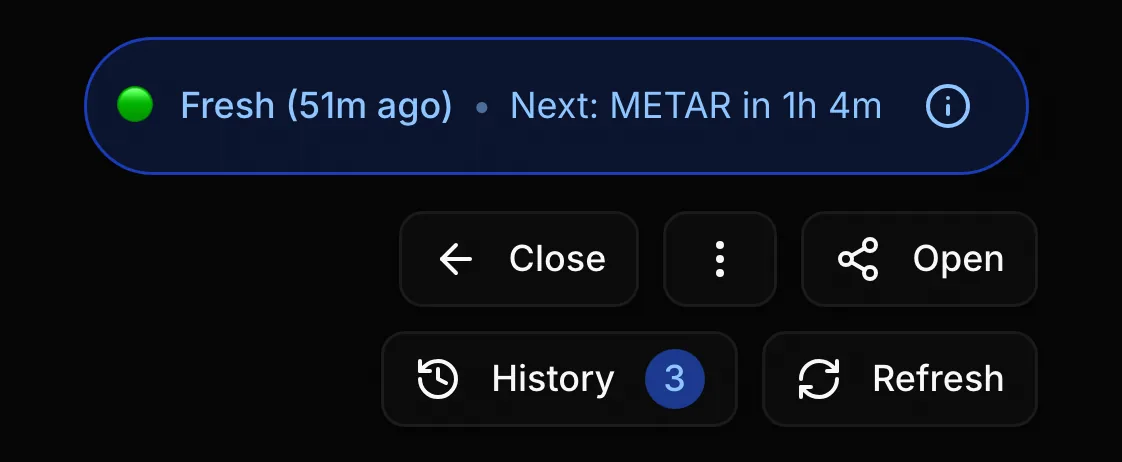
Weather Products by Timeframe
Different weather products cover different time horizons. PlaneWX automatically selects the most appropriate products for your departure timeframe:
METARs & TAFs
Current observations and 24-30 hour terminal forecasts
AIRMETs, SIGMETs & G-AIRMETs
Active hazardous weather advisories along your route
NBM (National Blend of Models)
Hourly sky cover, visibility, wind, gusts, and precip chance out to 72 hours (briefing path does not supply a ceiling height)
GFS MOS (MAV/MEX)
MAV station guidance about 6 to 72 hours (ceiling and visibility categories); MEX for extended horizons used with Corridor Watch days 4 to 7
Winds & Temps Aloft (FB Winds)
Forecast winds and temperatures at cruise altitude
CPC/WPC Outlooks
Extended pattern guidance, 8-14 days
Email NotificationsCASUAL & PRO
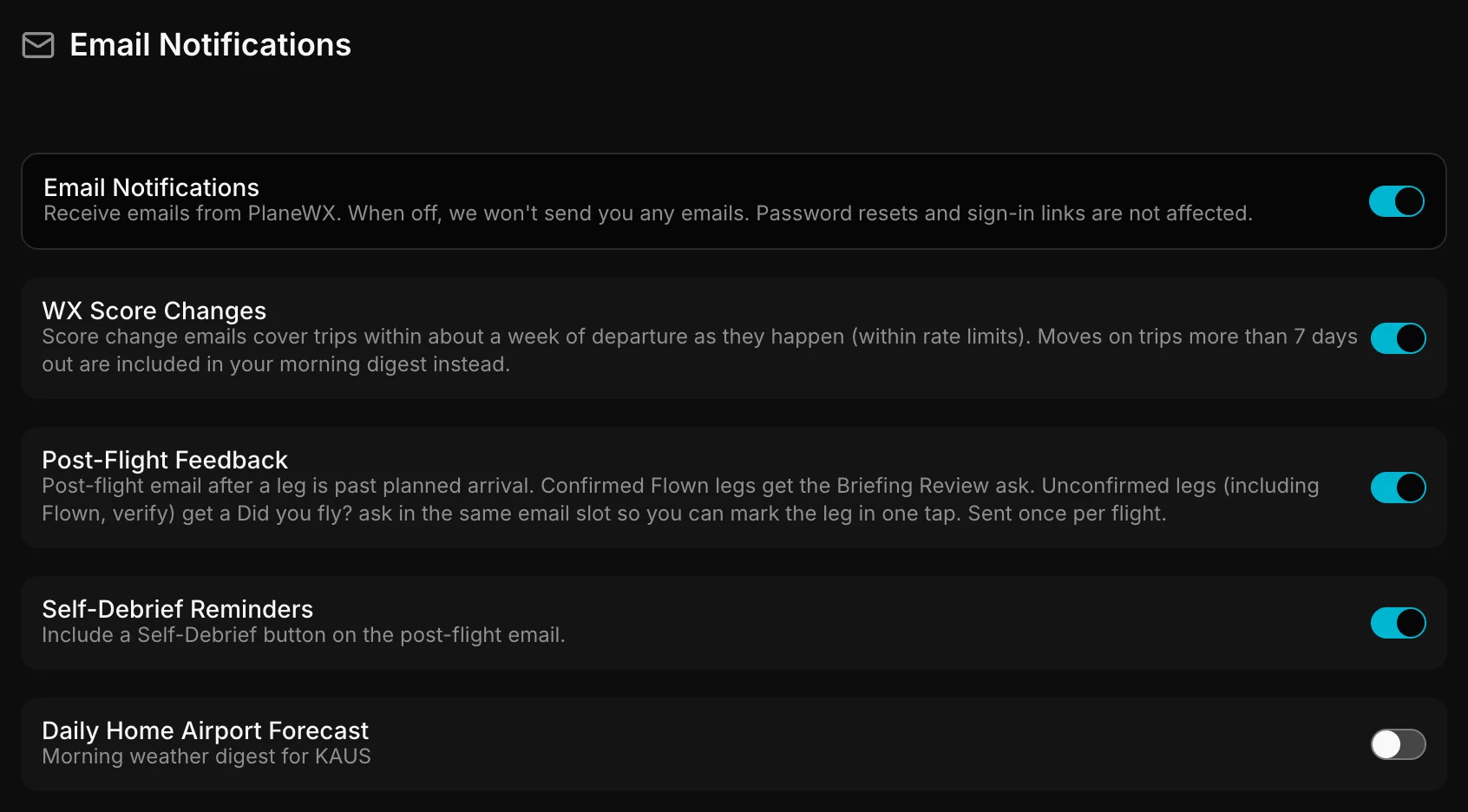
Casual and Pro users receive proactive email notifications so you're never surprised by a weather change. PlaneWX consolidates updates into digests to keep your inbox clean.
WX Score Alerts
When your WX Score changes by 10+ points - covering all your monitored trips, including flights days away. Use these to track how conditions are trending during the planning period. Sent immediately if your flight is under 6 hours away, otherwise included in your next digest. Trips more than 7 days out land in your morning digest instead of a separate email.
Morning Digest
At 5 AM, one email with your home airport forecast, all active trip updates, and any overnight score changes - instead of multiple individual emails.
Follow Me
Sub-setting under Daily Forecast in Profile, then Notifications - Pro and above. On by default. Each morning PlaneWX asks FlightAware where your default aircraft last landed in the past 7 days. If that's away from home, the digest shows that field's weather instead of your home airport, and Ground Protection watches it too. Needs a tail number on your default aircraft. If FlightAware finds no landing, the digest says so and shows home.
Plane not tracked by FlightAware? Set Currently parked at in the aircraft editor. A location you set always wins until it expires or you clear it. If FlightAware later sees the plane land somewhere else, the digest tells you so you can update it. Free and Casual pilots get the digest at their home airport.
Non-urgent emails are held and included in your morning digest. Imminent flight alerts (under 6 hours) still come through immediately.
Before Departure
These go out near departure on every plan. Pre-Flight Text is Pro Plus.
Pre-Flight Check
PlaneWX does not send a Final Pre-Flight Briefing email. Near departure, an iOS pre-flight check push can fire 20 to 35 minutes before departure with your route and current WX Score (on by default under Profile, then Notifications: Pre-flight check; not plan-gated). The separate Pre-Flight Text (Pro Plus) is the opt-in SMS in that same 20 to 35 minute window, with a verified phone required.
Push NotificationsiOS
iOS push is separate from email and from text alerts. The full list of what can push, each Profile toggle by name, quiet hours, and Send test lives on the iOS Push Notifications guide.
Score changes: within 24 hours only
The Score changes push fires only when departure is within 24 hours. Outside that window, email and the in-app bell still carry score moves. Other push types (pre-flight check, FRAT reminder, ground, mentor, Auto-Brief, self-debrief) use their own timing, not that 24-hour gate.
Score changes (within 24 hours)
When your WX Score moves by your alert threshold (default 10 points) and the trip is within 24 hours of departure. If the score bounces, the notification updates in place rather than stacking, so your shade shows the current score.
Also push when the score improves
Sub-toggle under Score changes. Turn it off to be pushed only when a score drops. Manage it on the Push Notifications card in Profile.
Email vs push for score moves
- • Monitored trips across the planning horizon
- • Planning trends (score drift over days)
- • Morning digest and quiet hours
- • Rate-limited to once per 6 hours per trip
Score change push
- • Within 24 hours of departure only
- • Same weather-only threshold as email
- • Collapses to show the current score
- • Respects quiet hours shared with text alerts
Manage every push type in Profile on the Push Notifications card. Details: iOS Push Notifications. Requires the PlaneWX iOS app with notifications enabled in iOS Settings.
Tips for Free Plan Users
With 15 briefings per week, here are some tips to make the most of them:
- 1.Set your minimums first. Get your personal minimums and aircraft profile dialed in before creating flights. Profile-change refreshes are free and don't count toward your 15.
- 2.Create flights closer to departure. A briefing created 2 days out uses higher-accuracy products (TAFs, METARs) than one created 10 days out. You get more value per briefing.
- 3.Watch for Manual refresh only, last briefed X. Use the trip card age label to see how old the briefing is. If the trip card or briefing header warns that the briefing is stale and will not update on its own, tap Check Updatesbefore you fly. Each Check Updates tap counts toward your weekly limit of 15.
- 4.Check Updates can be greyed out. When your departure has moved into a new forecast window but no new weather products have published since your last briefing, the Check Updates button is greyed out and says: Your briefing is up to date. No new weather products have been published since your last refresh. It is also greyed out once you have used all 15 briefings for the week. When it is active, tap it for a fresh picture.
- 5.Your counter resets every Monday. Unused briefings don't carry over, so don't save them up.
Good to Know
- • On the Free plan, your trip card shows Manual refresh only, last briefed X. Under 1 hour, X is less than an hour ago; from 1 to under 48 hours it is in hours; at 48 hours and over it is in days. When the briefing is stale and departure is still ahead, the trip card and the briefing header show: This briefing is X old and will not update on its own. Refresh before you fly. Past departures keep the label and never warn. Owner view only; paid plans do not see it.
- • Archived or past flights stop receiving updates
- • In the final hour, both auto-refresh and manual refresh use live data from the Aviation Weather Center
- • If a live fetch fails, PlaneWX falls back to the most recent cached data automatically
- • Casual and Pro users can customize email preferences in Profile → Notifications
- • Push Score changes (iOS) only fire within 24 hours of departure. Email covers the full planning horizon. See the iOS Push Notifications guide.
- • Pro Plus can tap Refresh anytime before departure. See the On-Demand Refresh guide.
- • Quiet hours use your departure timezone as a proxy for your local time
- • The WX Score breakdown is identical between plans - both get full detail