Aircraft Profiles
Configure your aircraft's capabilities for accurate weather analysis.
Why Aircraft Profiles Matter#
Every aircraft has different capabilities. A FIKI-equipped Cirrus can handle icing that would ground a Cessna 172. A turboprop has different crosswind limits than a light sport aircraft. PlaneWX uses your aircraft profile to provide analysis that matches what YOUR plane can do.
Aircraft Profile Fields#
Basic Information
- • Tail Number – Your aircraft's registration (e.g., N12345)
- • Aircraft Type – Make and model (e.g., Cessna 172S)
- • Default Flight Rules – VFR or IFR
Performance Data
- • True Airspeed (TAS) – Cruise speed in knots
- • Preferred Altitude – Your typical cruise altitude
- • Service Ceiling – Maximum altitude capability
These are used for calculating flight time, winds aloft analysis, and en-route weather evaluation.
Equipment & Capabilities
- FIKI Capable – Flight Into Known Icing approved
Affects how icing conditions are evaluated
- IFR Certified – Equipped for instrument flight
- Autopilot – Has autopilot installed
Affects workload assessment in complex weather
- Weather Radar – Onboard weather radar
Adjusts convective weather guidance
- Datalink Radar – ADS-B or satellite weather display
Ground-based radar data with noted limitations
- De-ice Equipment – Boots, TKS, or other de-ice systems
Runway Requirements
- • Minimum Runway Length – Shortest runway you'll use (e.g., 3,000 ft)
- • Paved Only – Whether you require paved surfaces
Used at trip create (warn + acknowledge if origin or dest is too short), on Trip Planner create, and on every briefing refresh — including flights more than 12 hours out. See Creating a Trip.
Aircraft-Specific Weather Limits#
Each aircraft can have its own weather limits that override your global personal minimums. These are optional. Leave them blank to use your global settings.
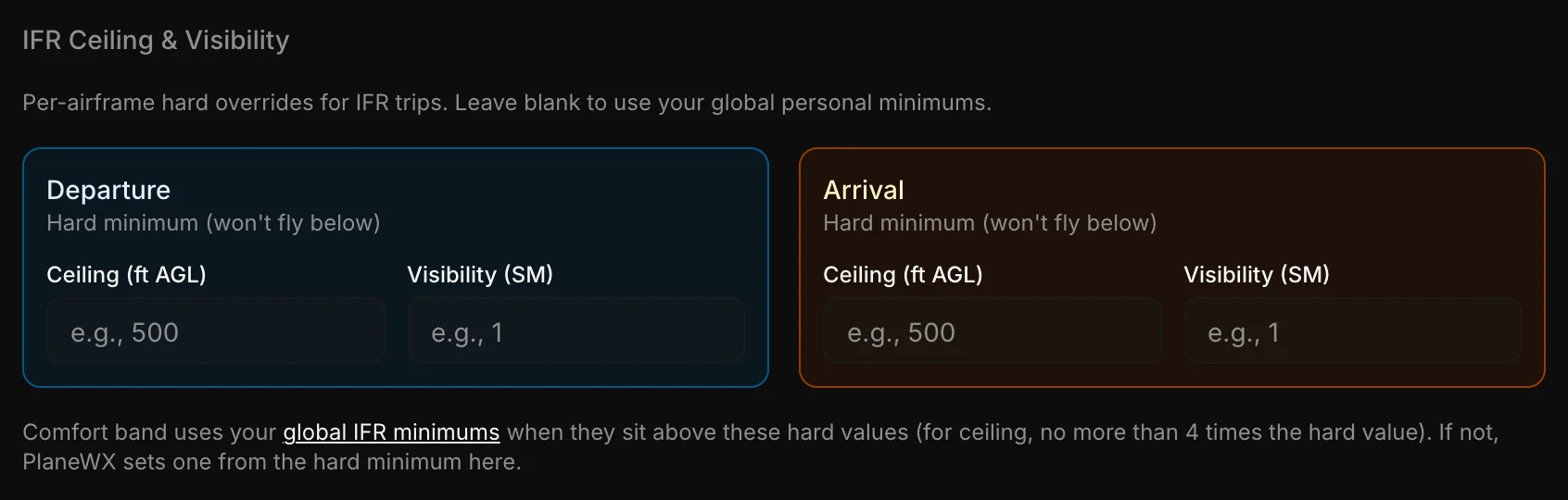
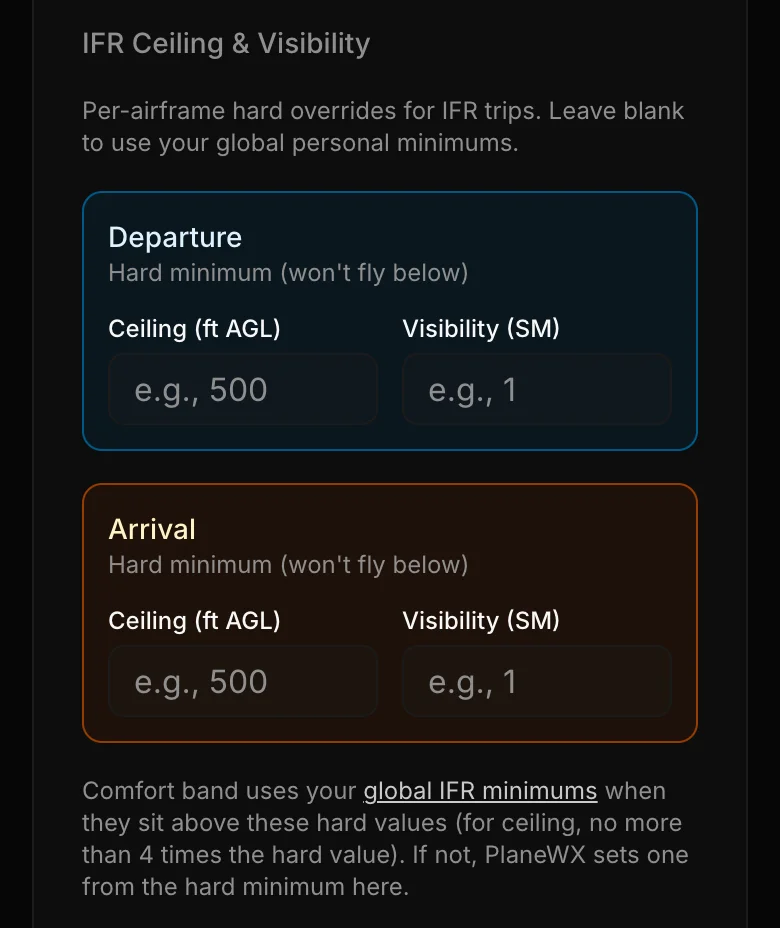
IFR Ceiling & Visibility
• Departure and Arrival boxes are hard minimums (won't fly below). They override your global IFR hard limits for that airframe.
• The comfort band uses your global IFR minimums (Profile, Minimums tab) when they sit above the aircraft hard value, and for ceiling no more than 4 times it. Otherwise PlaneWX sets it from the aircraft value: ceiling at twice the hard minimum or 200 ft above it, whichever is higher; visibility at twice the hard minimum.
Crosswind Overrides
• Comfortable: Feeds the comfort band for this aircraft
• Personal Max: Hard limit (won't fly above)
Turbulence, Icing & Wind Shear
• No concerns at: What severity (or speed) you're comfortable with
• Won't fly above: Your maximum acceptable severity (or speed)
FIKI-equipped aircraft typically have higher icing tolerance. Heavier aircraft handle turbulence and wind shear better. Wind shear limits are set in knots (e.g., comfort 30kt, max 50kt).
How overrides work: Aircraft-specific values take precedence over your global personal minimums when set. This allows lower hard limits in well-equipped aircraft you're comfortable in (e.g., 400 ft arrival ceiling in your SR22T vs 600 ft in a rental).
Ground Operations Wind#
This is the most total surface wind, steady or gusting, that you want at departure and arrival, whatever the direction. It is separate from your crosswind limits, which look only at the part of the wind across the runway.
If you leave this blank for an airplane, PlaneWX uses a suggested value by category: 20 kt for light-sport, light trainers, classic, bush and kit light singles; 25 kt for other light fixed-gear singles; 30 kt for high-performance singles, piston twins, turboprops and jets. Helicopters have no suggested value. These are suggested defaults, based on published guidance; set your own. No aircraft manual or FAA document sets these numbers.
Within 12 hours of departure: while a value shows Suggested, wind above it lowers the WX Score by up to 20 points per airport when steady wind is above it, or up to 10 when only gusts are. A suggested value never sets the score to 0. When you enter your own value, steady wind above it sets the WX Score to 0%, gusts above it cost up to 20 points, and steady wind above 75% of it costs up to 10.
From 12 to 72 hours out, with your own value: steady wind or a gust above it is a 25-point caution at that airport, not a 0%. A gust exactly at it, with steady wind at or below it, costs 5 points at that airport, and so does steady wind exactly at it with no gust reported. Crosswind points already charged at that airport count toward these points. Ground wind lines total at most 40 points for the trip. With the suggested value: steady wind above it costs 4 points per kt over, up to 20, and a gust at or above it, with steady wind at or below it, costs 5 points at the value plus 1 per kt above, up to 10. Steady wind exactly at the suggested value, with no gust reported, costs 5. At one airport, only the larger of this and a crosswind caution counts. With either value, when no TAF covers the time, the gust checked is the strongest NBM gust from 2 hours before to 2 hours after departure at the departure airport, and from 2 hours before to 2 hours after arrival at the arrival airport. This range never sets the WX Score to 0%. The check is skipped when the MOS bulletin is out of date, and it needs soft or hard personal minimums set. Details in Scoring Criteria.
Ground Protection uses your value, when you set one, for parked-wind alerts. Suggested values are not used there. Anyone can set this, on any plan, in Personal Minimums or in Aircraft preferences under Wind Limits.
Fuel Planning Fields#
To use the Fuel Planner on your briefings or the Fuel Advisor tool, your aircraft profile needs the following fuel fields filled in. Without them, PlaneWX can't calculate burn or required fuel.
Fuel Unit
Choose how you think about fuel:
- • Gallons (g) — standard for piston GA aircraft
- • Pounds (lb) — preferred by jet pilots; fuel trucks at US airports will convert for you
- • Litres (L) — for international operators or pilots based outside the US
All fuel plan numbers — FOB, FOD, burn, and add amounts — are displayed in this unit. At international FBOs, the “add” amount automatically shows the local unit alongside yours (e.g. +985lb / 556L at a Mexican airport).
Fuel Type
- • 100LL (Avgas) — piston aircraft
- • Jet-A — turbine and jet aircraft
Used to convert between pounds and gallons/litres when displaying add amounts at the FBO. Also used by the Fuel Advisor to filter candidate airports to those carrying your fuel type.
Fuel Capacity & Cruise Burn
- • Usable fuel capacity — total usable fuel in tanks, in your chosen unit
- • Cruise burn rate — typical cruise fuel flow per hour (GPH, PPH, or LPH)
Both are required for the fuel planner to work. If either is missing, the briefing will show “Add fuel capacity & burn rate in your aircraft profile to enable the fuel planner” with a direct link to your profile.
Current FOB (optional)
Your current fuel on board. This is displayed on your aircraft list so you can quickly see how much fuel you have without opening a trip. You can update it any time — including by texting PlaneWX: FOB [tail] [gallons].
The fuel planner pre-fills this value when you open a new fuel plan, so you're not starting from scratch on every trip.
Fuel Reserve
Your configured reserve, either time-based (e.g. 45 minutes) or quantity-based (e.g. 10 gallons). The fuel planner will never suggest a route that leaves you below this reserve at landing.
Fuel planner is a planning aid only. Actual burn varies with winds, power settings, weight, and density altitude. Always verify fuel loads against your POH and applicable regulations before flight.
Managing Multiple Aircraft#
If you fly multiple aircraft, you can add profiles for each one. When creating a trip, select which aircraft you'll be flying, and PlaneWX will apply the appropriate capabilities and minimums.
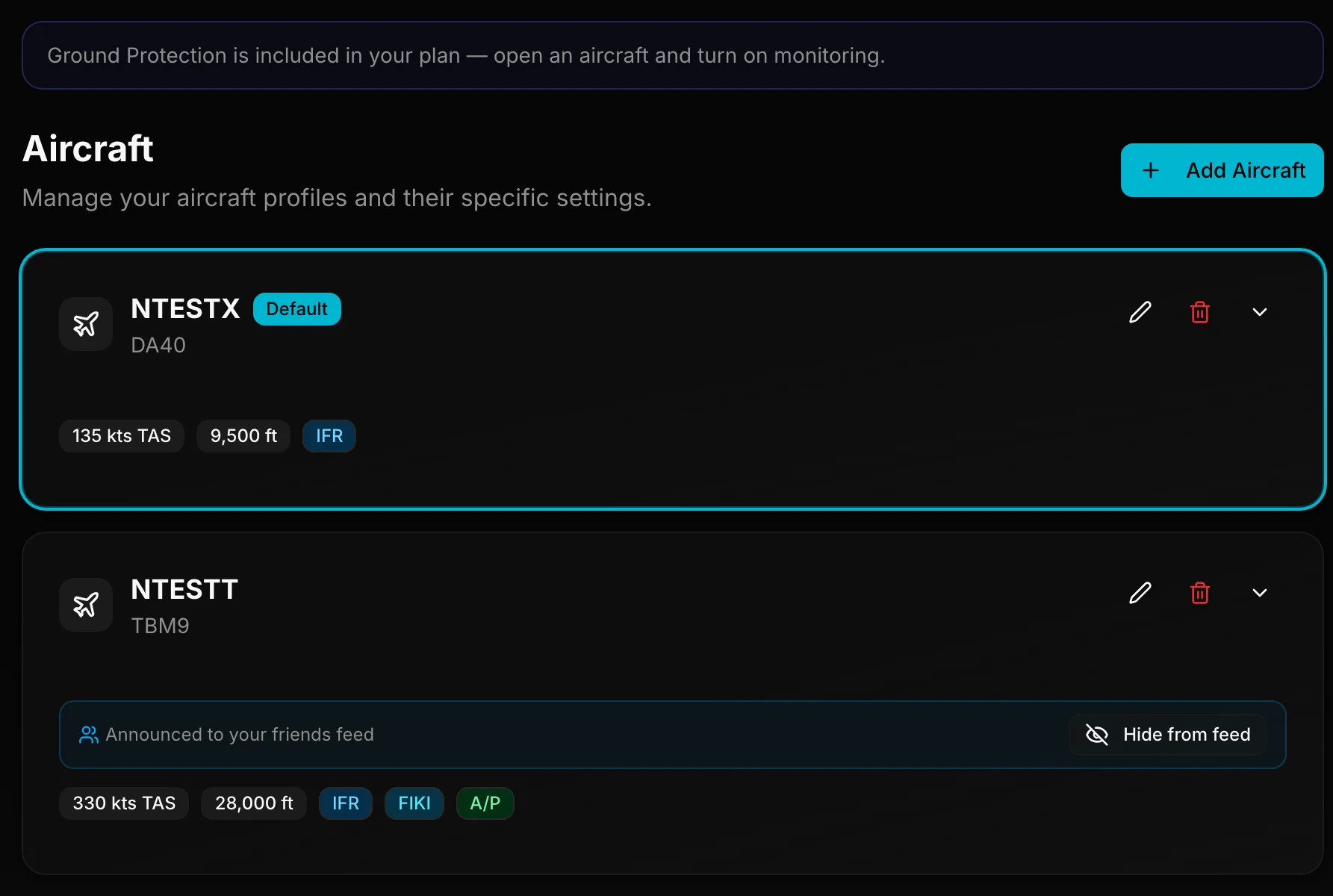
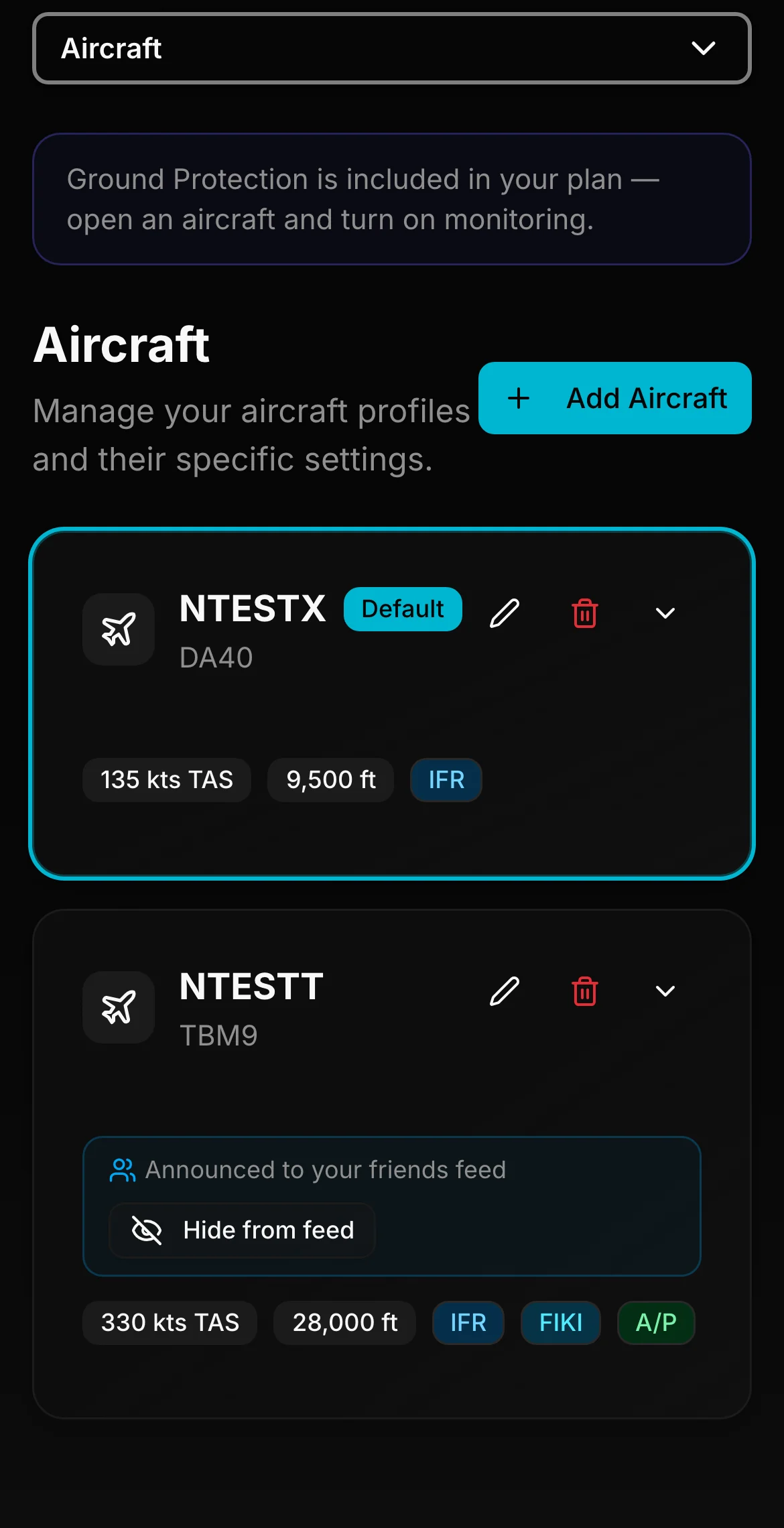
Set one aircraft as your default—it will be pre-selected when creating new trips.
Adding or Editing Aircraft#
- 1Go to Profile from the navigation
- 2Scroll to the Aircraft section
- 3Click Add Aircraft or Edit on an existing aircraft
- 4Fill in the performance data, equipment, and weather limits
- 5Save your changes
Tips
- • Use your aircraft manual for accurate performance data
- • Set crosswind limits based on your comfort level with each aircraft
- • If your AFM has a ground ops wind limit, enter it — PlaneWX will flag surface wind exceedances that a crosswind check alone would miss
- • Update profiles when equipment changes (e.g., adding ADS-B In)
- • If renting, create a profile for each aircraft you commonly fly